
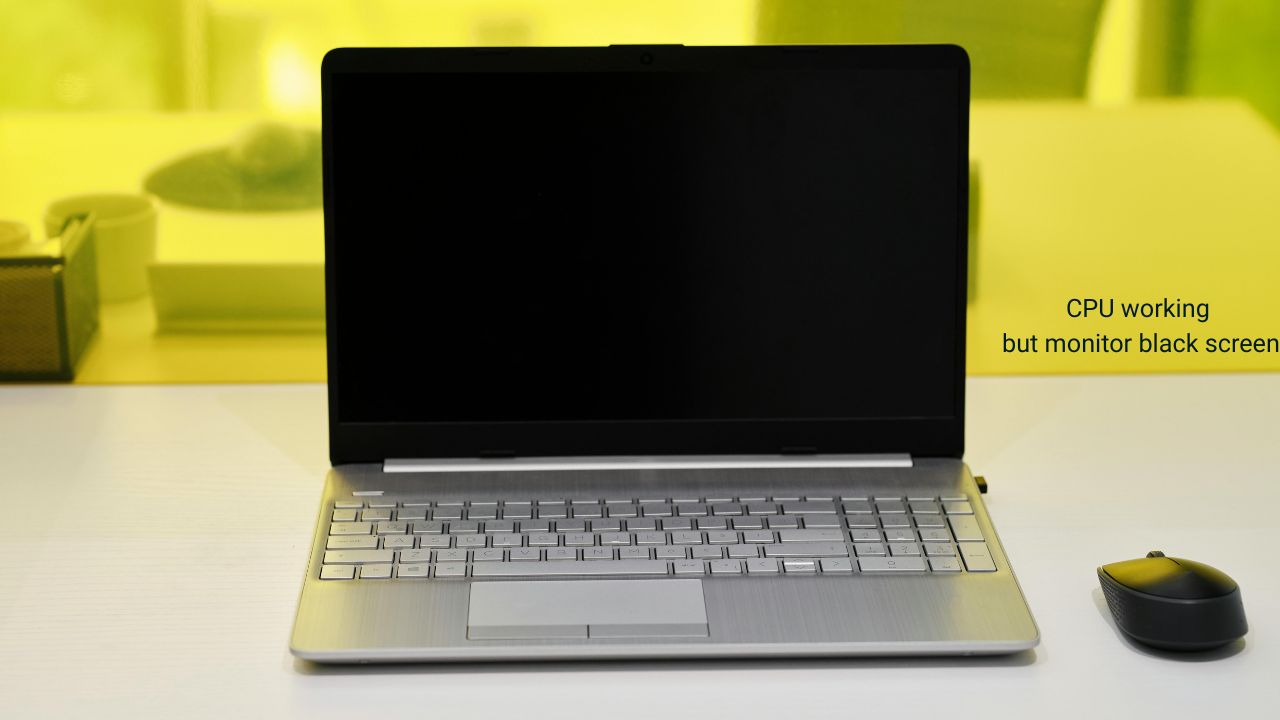
Seeing your CPU working but monitor black screen can be incredibly frustrating—especially when you need your PC for urgent work or gaming. The fans are spinning, lights are on, but the display stays blank. This issue is quite common among desktop users and can stem from a variety of causes—ranging from simple cable faults to complex hardware or BIOS problems.
In this guide, we’ll walk you through all the possible causes and step-by-step methods to fix the CPU working but monitor black screen issue. Whether you’re a tech novice or an experienced user, you’ll find practical solutions here that actually work.
Key Takeaways
- The issue of CPU working but monitor black screen can be caused by faulty cables, display issues, or BIOS settings.
- Begin troubleshooting with simple checks—power, cable, and connections—before moving to advanced fixes.
- Reseating RAM, resetting BIOS, or testing GPU connections can resolve most black screen problems.
- Always handle internal hardware with care and ensure your PC is powered off before opening it.
Common Causes of CPU Working but Monitor Black Screen
Hardware Issues
One of the most frequent culprits behind a CPU working but monitor black screen issue is a hardware malfunction. Here are the main areas to check:
- RAM issues: A loosely fitted or faulty RAM stick can prevent your system from displaying output. Try reseating or replacing the RAM.
- Graphics card (GPU) problems: If your PC has a dedicated GPU, it might be improperly seated or malfunctioning. Connect the monitor to the motherboard’s integrated graphics to test.
- Power supply problems: A partially failing PSU might power the CPU and fans but not the display output. Ensure all power connectors, including the 24-pin and 8-pin, are securely attached.
- Motherboard failure: Although less common, a damaged motherboard or capacitor can prevent the system from booting correctly.
Display and Cable Problems
Sometimes, the problem isn’t inside your PC—it’s on your desk. Faulty display cables or incorrect input sources are often the simplest reasons for a black screen while the CPU is working.
- Loose HDMI/VGA cable: Check that the monitor cable is tightly connected to both ends.
- Wrong input source: Use the monitor’s buttons to select the correct input (HDMI, DisplayPort, DVI, or VGA).
- Damaged display: Test your monitor with another device to ensure it’s working.
- Cable damage: Swap out your HDMI or DisplayPort cable with a known working one.
BIOS and Software Issues
Sometimes the issue is software-based rather than hardware-related.
- Corrupted BIOS: A misconfigured BIOS can prevent your system from booting correctly.
- Overclocking failure: Incorrect CPU or GPU overclocking settings can result in a black screen.
- Operating system corruption: If Windows fails to load properly, it may appear as a black screen even though the CPU is running.
Step-by-Step Solutions
Basic Troubleshooting
Start with these quick checks before diving deeper:
- Check power connections – Ensure your monitor and CPU are both powered and plugged in correctly.
- Test with a different cable or monitor – This eliminates the possibility of a faulty cable or display.
- Reseat RAM and GPU – Power off your PC, remove and reinsert your RAM sticks and graphics card.
- Remove external devices – Unplug all USB devices except the keyboard and mouse to see if one is interfering.
- Clear CMOS/Reset BIOS – Resetting BIOS can fix many startup and display issues. Refer to your motherboard manual for instructions.
- Listen for beeps – If your motherboard has a speaker, beeping codes can help identify the cause of failure.
Advanced Fixes
If the basic steps didn’t work, try these more technical methods:
- Boot with integrated graphics: Remove the dedicated GPU and connect your monitor to the motherboard’s video port. If it works, your GPU might be faulty.
- Update BIOS: Using another PC, download the latest BIOS update from your motherboard manufacturer’s website.
- Inspect for physical damage: Look for burnt components, swollen capacitors, or bent pins on the CPU or motherboard.
- Test PSU output: Use a PSU tester or multimeter to check power supply voltages.
- Reinstall operating system: If the monitor lights up but no OS loads, reinstall Windows or your preferred OS.
- Replace faulty components: If all else fails, a faulty GPU, RAM, or motherboard might need professional replacement.
Conclusion
When your CPU is working but the monitor shows a black screen, the problem can range from a loose cable to a more serious hardware fault. The key is to start simple—check connections, power, and peripherals—before moving to internal components. By following these troubleshooting steps carefully, most users can identify and fix the issue without needing professional help.
If the problem persists after all these fixes, it’s best to seek expert repair services to avoid further damage. Remember, regular cleaning, good ventilation, and using surge protection can help prevent such problems in the future.
FAQs
his often happens due to faulty cables, RAM, GPU, or BIOS issues. Start by checking all connections and reseating components.
Yes, a faulty or improperly seated graphics card can cause the system to run while the monitor stays black.
If the CPU and fans run but there’s no display, no beeps, and peripherals don’t light up, the motherboard might be faulty.
This could be caused by RAM, GPU, or PSU issues. Always test each component individually to isolate the problem.
Only after confirming hardware is functional. A corrupted OS can cause a black screen during boot-up.